Codex Skills: How to Download, Open, and Install Skills Step by Step
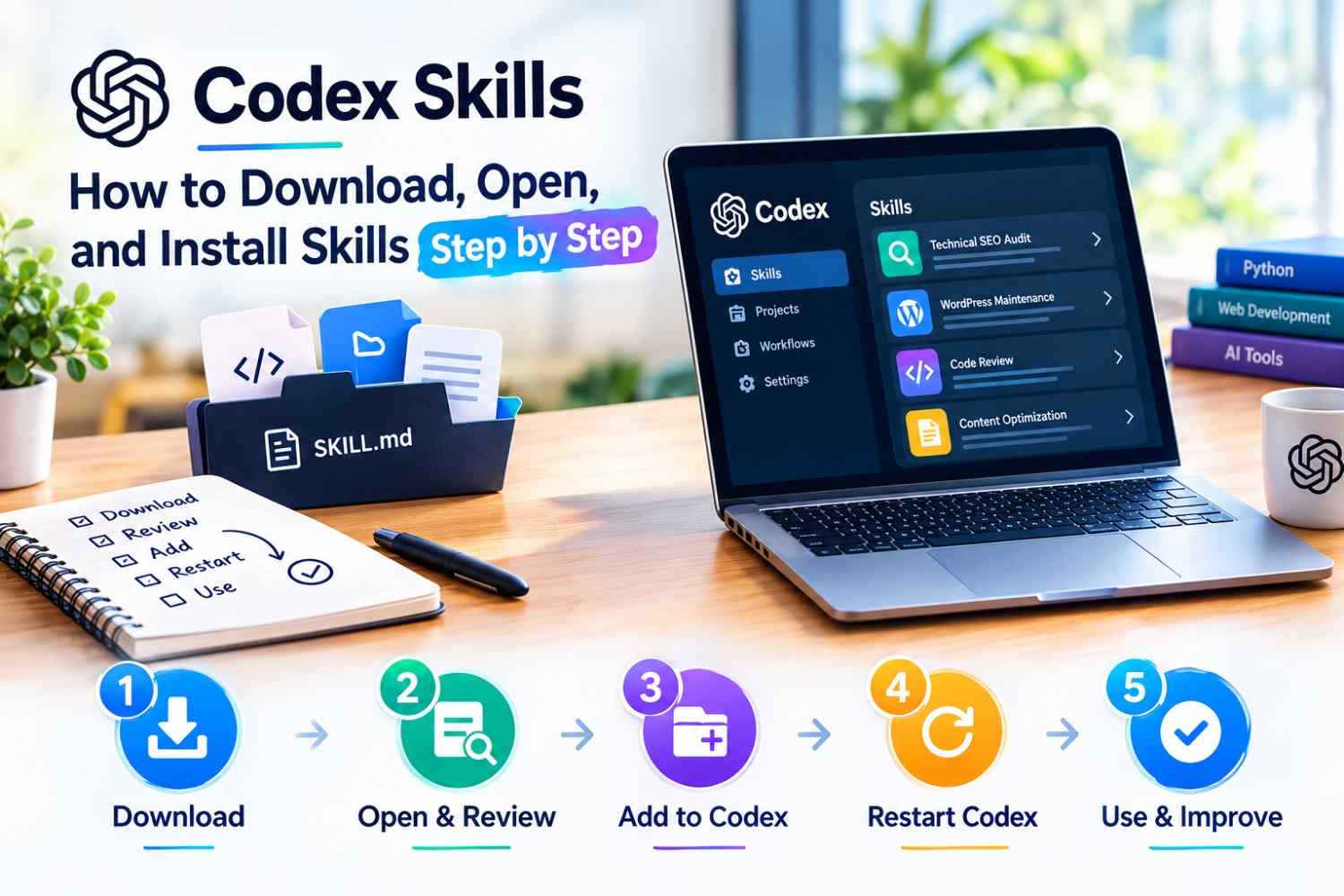
Codex Skills help developers turn repetitive coding tasks into reusable workflows. Each skill contains instructions in a SKILL.md file and may include supporting scripts, references, or templates. Instead of repeating the same instructions, you can let Codex follow a predefined process.
Step 1: Download Codex Skills
Start with the official OpenAI Skills repository, where you can explore available skill examples and their files.
Open a skill's directory and review its SKILL.md, supporting resources, and license before using it. You can download the repository or obtain an individual skill from its directory.

Step 2: Open and Review the Skill
If you downloaded a ZIP file, extract it first. Open the extracted folder using Visual Studio Code or another text editor.
Locate SKILL.md and read its instructions. Check what the skill does, which tools or scripts it requires, and whether its instructions match your intended workflow. Never run unfamiliar scripts without reviewing them.
For more details, read the official Codex skills documentation.

Step 3: Add the Skill to Codex
For a local Codex setup, custom skills can be stored in your user-level skills directory:
\~/.codex/skills/
Create a separate folder for your skill and place its SKILL.md inside it. For example:
\~/.codex/skills/
└── technical-seo-audit/
└── SKILL.md
On Windows, \~ represents your user home directory. You can also create project-specific skills in the supported project-level .codex/skills/ directory.

Step 4: Restart Codex and Use Your Skill
Restart Codex so it can discover the newly added skill. Make sure the SKILL.md file includes valid name and description metadata.
You can then ask Codex to use your skill explicitly, for example: “Use the technical-seo-audit skill to review this project's metadata and structured data.”
 Step 5: Test and Improve the Results
Review the output, verify its recommendations, and refine the skill instructions if needed. For WordPress projects, you can combine reusable skills with supported MCP integrations. Explore WSP MCP solutions to learn more about connecting AI workflows with WordPress tools.
You can also follow our guide to connecting Codex with WordPress and our tutorial on adding schema markup to WordPress.
Final Thoughts
Installing Codex Skills is a practical way to standardize coding, WordPress maintenance, and technical SEO workflows. Start with a trusted skill, inspect its files, add it to the correct directory, and test it before relying on its results. For WordPress automation, follow our step-by-step guide on how to connect Codex with WordPress via MCP.