How to Add JSON-LD Schema Markup to Shopify
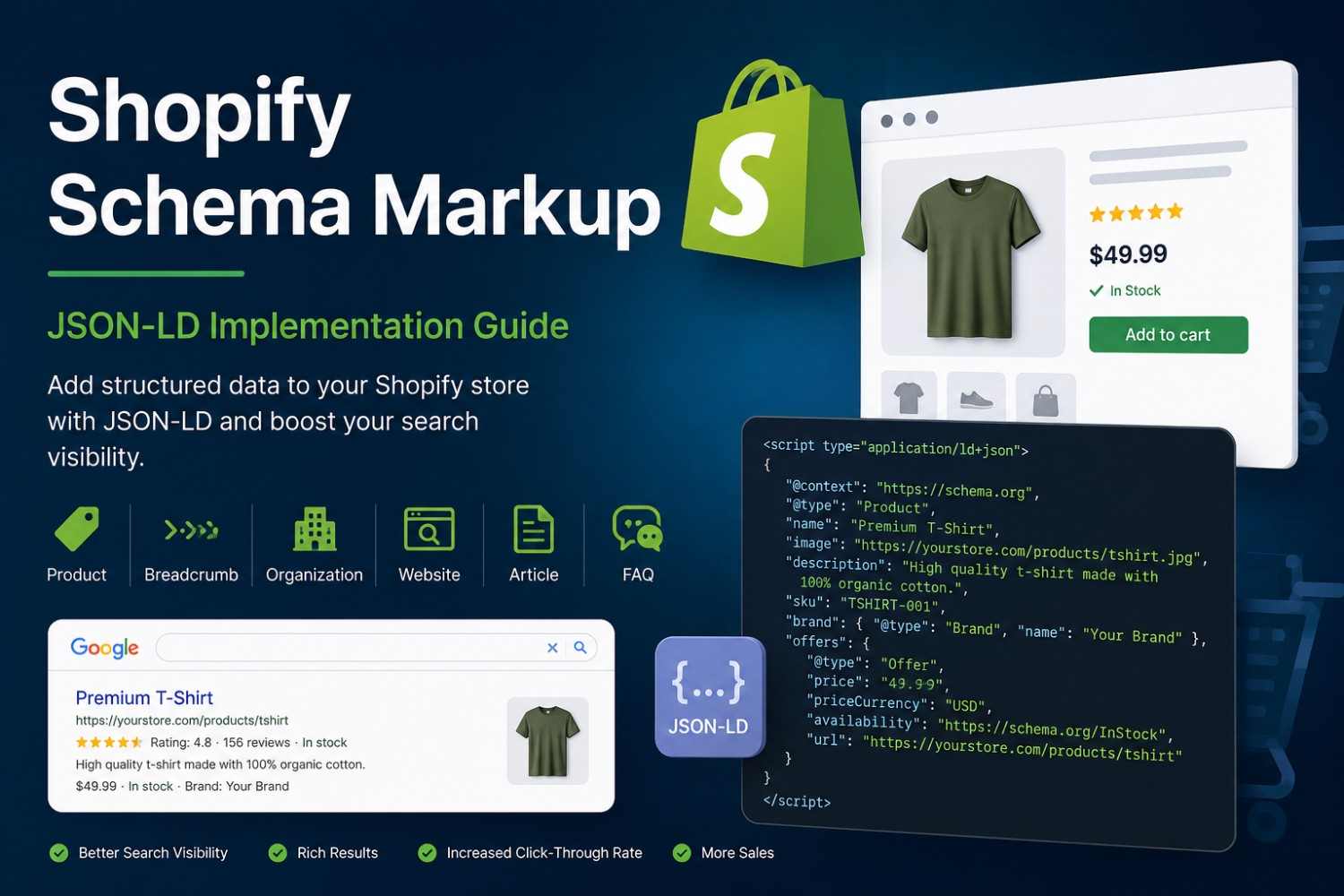
Shopify gives you a solid ecommerce foundation, but it doesn't automatically translate your product data into the structured format search engines can act on. That's where JSON-LD schema markup comes in — and getting it right on Shopify requires a bit more thought than copying a generic script into your theme.
What Is Shopify Schema Markup?
Schema markup is a vocabulary of structured data, defined at Schema.org, that makes page content machine-readable. Instead of relying on search engines to infer what a page is about, you label it explicitly: this is a Product, this is its price, this is its availability.
JSON-LD (JavaScript Object Notation for Linked Data) is a widely recommended format for adding structured data to web pages. It lives inside a <script type="application/ld+json"> block and has no effect on the visual page — which makes it easier to manage than older formats like microdata that embed attributes directly in HTML tags.
On Shopify, this matters because Liquid templates render pages dynamically. A single product template serves thousands of product pages. Your structured data implementation needs to follow that same pattern.
Which Schema Types Matter for Shopify Stores?
Not every schema type applies to ecommerce. For most Shopify stores, the relevant ones are:
- Product — the most important type for product pages. Describes name, image, description, SKU, brand, price, currency, availability, and URL.
- BreadcrumbList — marks up the navigation path (Home > Collection > Product) and can replace raw URLs in search results.
- Organisation — identifies the store itself: name, logo, URL, and social profiles.
- Website — enables the sitelinks search box for your domain in some cases.
- Article — relevant for Shopify blog posts, marking up author, publish date, and headline.
- FAQPage — appropriate when a page genuinely contains question-and-answer content, such as a product FAQ section.
Product structured data deserves the most attention. Useful properties include name, image, description, SKU, brand (itself a nested Brand type), offers (containing price, priceCurrency, availability, and URL), and aggregateRating when you have real review data to back it up. For a deeper look at building out review data correctly, see the AggregateRating schema guide.
Where Should You Add JSON-LD in Shopify?
Location determines scope. Sitewide schema — Organisation, WebSite — belongs in layout/theme.liquid, just before the closing </head> tag. That file renders on every page, so anything placed there runs globally.
Product schema should only fire on product pages. You have a few options:
- Inside sections/main-product.liquid (or its equivalent in your theme) — keeps product schema close to the product template logic.
- In a dedicated snippet (e.g., snippets/product-schema.liquid) rendered with {% render 'product-schema' %} from within the product template — cleaner and easier to maintain.
- In theme.liquid wrapped in a conditional — {% if template.name == 'product' %} — which works even on themes like Horizon that no longer ship a standalone main-product section.
Avoid hard-coding schema in theme. Liquid without that conditional. A Product schema block that fires on your homepage or collection pages is structurally incorrect and will generate validation warnings.
One important note: theme file structures vary. Don't assume a file exists just because it does in another theme. Always inspect your theme's actual file tree before deciding where to hook in your JSON-LD.
Using Shopify Liquid for Dynamic JSON-LD
This is where Shopify structured data gets genuinely useful. Liquid lets one schema template generate different, accurate JSON-LD for every product in your catalogue. Here's a condensed example:
{% if template.name == 'product' %}
{% assign variant = product.selected_or_first_available_variant %}
<script type="application/ld+json">
{
"@context": "https://schema.org",
"@type": "Product",
"name": {{ product.title | json }},
"description": {{ product.description | strip_html | json }},
"url": {{ shop.url | append: product.url | json }},
"image": {{ product.featured_image | img_url: 'master' | prepend: 'https:' | json }},
"sku": {{ variant.sku | json }},
"brand": {
"@type": "Brand",
"name": {{ product.vendor | json }}
},
"offers": {
"@type": "Offer",
"price": {{ variant.price | divided_by: 100.0 | json }},
"priceCurrency": {{ shop.currency | json }},
"availability": "https://schema.org/{% if variant.available %}InStock{% else %}OutOfStock{% endif %}",
"url": {{ shop.url | append: product.url | json }}
}
}
</script>
{% endif %}
The | json filter is important — it escapes special characters and quotes safely, preventing JSON syntax errors. product.selected_or_first_available_variant ensures you're pulling data from the variant actually displayed by default, not just the first defined variant regardless of stock status. If you'd rather see this process end-to-end, this Shopify schema markup implementation walkthrough covers adding the snippet to a live theme and verifying the output. For more on building out this kind of implementation, the Shopify Product Schema Generator at SEO Schema Markup outputs ready-to-paste Liquid with variant handling and conditional rating blocks built in.
Product Schema: What Should Shopify Merchants Include?
The core relationship is: Product → Brand → Offer → Price + Availability. Each layer needs to be accurate.
The Offer block is where most validation errors occur. Price must match what's visible on the page. If you show a sale price, the schema should reflect the sale price — not the compare-at price. Currency must be a valid ISO 4217 code. Availability must reflect actual stock: marking an out-of-stock product as InStock will generate errors in Search Console.
Variants deserve specific thought. Shopify products can have multiple variants (size, colour, material) with different prices and stock levels. Your schema should represent the variant that loads by default — typically handled via selected_or_first_available_variant. Some implementations emit one Offer per variant as an AggregateOffer; others represent a single variant. Either approach can be valid, but the data must stay accurate.
If you collect product reviews through an app, include aggregateRating only when real reviews exist. Never fabricate ratings or review counts to populate the field.
Avoiding Duplicate Schema on Shopify
This is one of the most common problems in Shopify structured data setups, and it's easy to miss.
Duplicate Product or Organisation schema can appear when:
- Your theme already outputs structured data (many Shopify themes do)
- An SEO app injects its own JSON-LD
- You add a custom Liquid snippet on top of both
Search engines don't average out duplicate blocks — they may get confused, trigger Search Console warnings, or simply ignore one of the implementations.
Before adding any JSON-LD, open a live product page in your browser, view the page source, and search for application/ld+json. If you find an existing Product schema, decide whether to remove it, extend it, or replace it rather than adding another block alongside it. The schema markup validator at SEO Schema Markup makes this audit straightforward — paste your page URL or raw HTML, and it surfaces every structured data block the page is serving.
How to Validate Shopify JSON-LD
After implementation, validation is not optional. Here's a practical sequence:
- Open the live Shopify product page (not the theme preview).
- View page source and confirm the JSON-LD block is present and populated with actual product data, not empty Liquid variables.
- Paste the page URL into Google's Rich Results Test to check required and recommended properties.
- Use the SEO Schema Markup validator to cross-check against Schema.org specifications.
- Fix any errors before addressing warnings — errors prevent rich result eligibility; warnings are improvements.
- After changes, re-test. Theme edits and app updates can silently break or duplicate structured data.
Passing validation means your markup is structurally correct. It doesn't guarantee that rich results will appear — Google makes that determination based on additional signals including content quality and crawl frequency.
Common Shopify Schema Markup Mistakes
- Hard-coding prices that become stale when products go on sale
- Marking discontinued or sold-out variants as InStock
- Missing SKU, brand, or priceCurrency — frequently flagged required fields
- Invalid JSON-LD syntax from unescaped quotes or missing commas
- Duplicate Product schema from theme + app + custom snippet running simultaneously
- Schema content that doesn't match visible page content
- Adding aggregateRating with no real reviews
- Relative image URLs instead of absolute ones
- Schema types that don't match the actual page (e.g., Product schema on a collection page)
- Forgetting to re-validate after a theme update
These aren't edge cases — they're the issues that come up most often in Search Console's Enhancement reports.
Shopify Schema Markup Implementation: A Practical Workflow
Audit — inspect existing structured data on your live pages before writing a line of code.
Choose schema types — match them to your actual page types. Product pages get Product schema; blog posts get Article schema; every page benefits from BreadcrumbList. For reference, types of schema markup cover the full landscape.
Implement JSON-LD — use Liquid snippets or template conditionals, not hard-coded blocks. The how-to schema markup guide walks through general implementation patterns if you need a reference point.
Make data dynamic — populate every property from Shopify objects (product.title, variant price, availability) rather than static values.
Check for duplicates — view source on live pages and remove or consolidate any competing implementations.
Validate — use Google's Rich Results Test and the SEO Schema Markup validator together.
Monitor — check Search Console's Enhancement reports regularly. Theme updates, new apps, and Shopify platform changes can all affect structured data output without warning. If your technical SEO workflow spans both Shopify and WordPress, tools like Free WordPress MCP let AI assistants interact directly with WordPress sites, which can make monitoring and updating structured data across platforms considerably less manual.
Successful Shopify structured data implementation isn't about how many schema types you add. A single, accurate, dynamic Product schema block that correctly reflects your actual product data will serve you better than five overlapping implementations with mismatched prices and fabricated ratings.
Get the fundamentals right: use Liquid to keep data dynamic, check for duplicates before you ship, and validate against what's actually on the page. The SEO Schema Markup validator and generator suite covers the full toolset — from the Shopify Product Schema Generator that outputs ready-to-paste Liquid to the validator for checking any JSON-LD implementation before and after it goes live.